Models Menu
The Models Menu lets you manage, configure, and download AI models. Additionally, it allows you to configure MCP servers (Model Context Protocol) used by Char Tool Calling and Remote AI Models.
⭐ 3 Things You Need to Know
- Use the largest model available specialized in the intended task that runs on your system.
- You'll usually feel a huge difference in answer quality between tiny models (~3B parameters) and slightly larger ones (13B+).
- Specialization matters - A smaller specialized model often outperforms a larger general-purpose one.
- Begin by testing your PC's limits with incremental model sizes.
- Start by downloading a ~7B parameter model, then try 13B, and so on.
- This helps find your system's optimal balance of performance and speed.
- There's no perfect model - experimentation is key.
- Even your favorite model might be surpassed by new releases.
- Different models create different storytelling experiences - switching keeps roleplay fresh.
- The search for better models is part of the fun!
Use the Add Recommended Model Button to explore available Text Model options and download models that best match your requirements and system.
❓Why Are There Different AI Models?
AI models vary significantly in architecture, training data and intended use. This diversity allows users to select models best suited to their specific needs. Key differences include:
- Performance vs. Efficiency: Larger models (e.g., 70B+ parameters) offer advanced reasoning and generation capabilities but require substantial computational power. Smaller models (e.g., 7B–13B) are faster, more efficient and ideal for local devices or specialized tasks.
- Specialized vs. General-Purpose: Some models are fine-tuned for specific domains - such as coding, medicine, law, roleplay, or technical writing - while others are designed to handle a broad range of general queries.
- Capabilities & Modalities: While many models focus solely on text generation, others support multimodal inputs (e.g. images, audio, ...). Additionally, models differ in maximum context size - the amount of text they can process at once - and may exhibit performance degradation when handling very long inputs.
- Open vs. Closed Source: Open-weight models (like Llama, Mistral or Phi) allow full transparency, local deployment and customization. Closed models (e.g., GPT, Claude) are typically accessed via API, offering broad capabilities but less control over data and behavior. This variety ensures you can balance speed, cost, accuracy, privacy, and functionality based on your requirements.
❓Can I Add a model that doesnt run on my local machine?
Yes, for Text AI and TTS. The endpoint has to follow the OAI spec. Be aware that this can affect your privacy if you don't control the endpoint's environment.
Add Model → Generic Endpoint → Specify required Extra Body parameters (see Tooltips) → Specify the Base URL → Then you should be able to Retrive a Model List by clicking on the Edit Button next to the Model Text Field.
If the retrieval fails, ensure that the Base Url is set correctly.
Local MCP Servers
- These are applications that can read, modify and delete local files or in other words they can harm your system or data
- Only add MCP servers from sources you trust
- Only add MCP servers that you understand
- Review the executable, script or source code before running it
Please don't give your Char the power to harm your computer!
The Model Context Protocol (MCP) is designed to be a universal bridge between AI assistants and external tools, data and systems.
Think of MCP as a common language or a set of rules for communication. Because it's a protocol, the core value is that anyone can implement it using the technology that best fits their needs.
That's why you'll find MCP servers implemented in various ways: as a single executable, a Python script, as JavaScript executed via with a node server, ... or even as a HTTP endpoint.
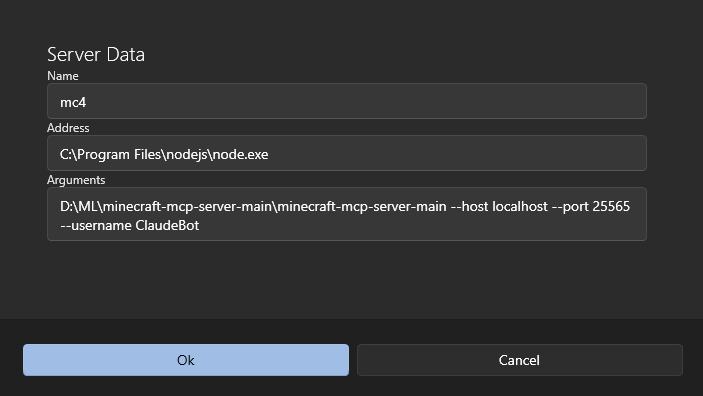
Use the template buttons to prefill some of the fields based on the technology of the MCP server you want to add.
.NET Example Config
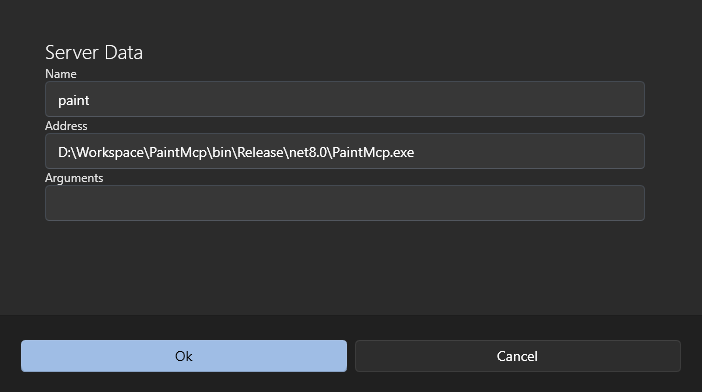
- Safe Paint Example - Source Code and Description, Executable and Behavior Visualization
Node Example Config
Text-To-Speech Models
| Architecture | Enhanced if eSpeak NG Installed | Multilingual |
|---|---|---|
| System | No | Yes |
| Piper | Yes | Yes (see below) |
| Kokoro | Yes | No |
| Supertonic | No | Yes |
| Endpoint | No | Yes |
| Chatterbox (Endpoint) | No | Yes |
Supertonic3 supports the following expression tags:
<laugh> <breath> <surprise> <sigh> <scream> <throatclear> <sad> <angry> <cough> <yawn>
These tags generally perform best in Korean, English and Japanese. For the most reliable results, place them at the beginning or end of a sentence rather than in the middle.
Individual tags may sometimes be ignored. To increase the likelihood that an expression is regarded, repeat the tag two or three times (for example: <laugh><laugh> or <laugh><laugh><laugh>).
eSpeak NG
eSpeak NG is a text-to-speech tool (program) and AI Pals Engine optionally uses it to convert text into phonemes to improve the TTS output for certain models (see table). Please see the inapp Test Model View Instructions (Models -> Text-To-Speech -> Test Model). It will show if the model uses eSpeak NG or instructions on how to install.
Troubleshooting
Details
If the AI Pals Engine cannot find eSpeak NG after installation, follow these steps:
- Restart the App
- After installing eSpeak NG, close the app completely and reopen it.
- Verify Installation
- Open a terminal or command prompt and run:
espeak-ng --version - If it returns a version number, the system can find eSpeak NG and AI Pals Engine should find it too. Please restart your system and retry. If that doesn't fix it please report the problem.
- Open a terminal or command prompt and run:
- Check the PATH Environment Variable (Only if the command above doesn’t work)
- The app looks for
espeak-ng.exein the system PATH. - Ensure the directory where eSpeak NG was installed (e.g.
C:\Program Files\eSpeak NG\) is included in the PATH.- Windows:
- Press
Win + R, typesysdm.cpl, go to Advanced → Environment Variables, and checkPATHunder System variables. - If missing, add the folder containing
espeak-ng.exeand restart the terminal to test again step2.
- Press
- Windows:
- The app looks for
More Piper Languages and Models
Since V0.8.10.0 you can now use any Piper TTS model. More languages you can be found here.
espeak NG must be installed for non-English languages.
How to add:
- Download the model + the config file e.g. de_DE-thorsten-high.onnx and de_DE-thorsten-high.onnx.json
- Click on Add File and select BOTH files